You can delete tables and columns that are not required.
Tables
To delete tables from environments, follow these steps:
- Go to Application Menu > Data Catalog > Metadata Manager > Explore.
- On the Explore tab, click an environment tile to view its details and tables.
- Click Options.
- Click Delete Table(s)/Components(s).
- Select the required tables.
- Click
 .
.
The available options appear.
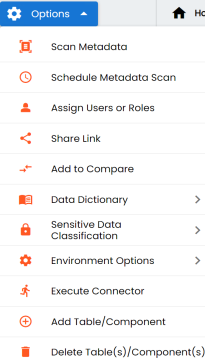
The Delete Tables page appears.

The selected tables are deleted from the environment.
Columns
To delete columns from tables, follow these steps:
- On the Explore tab, click an environment tile to view its details and tables.
- In the Data Catalog pane, click a table to see its columns.
- Click Options.
- Click Delete Column(s)/Field(s).
The available options appear.
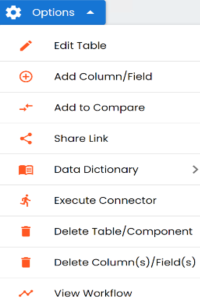
The column is deleted.